FASTING FREE / PRACTICAL GUIDES
Export & Restore Fasting History and Journal Data
Download fasting history and journal records, review a JSON backup before restoring it, and keep your saving choices separate.
Download fasting history
- Open the timer in the browser or account that holds the history you want.
- Select Settings & data.
- Find Take a copy of fasting history.
- Choose Export JSON, Export CSV, or Raw backup, then save the downloaded file somewhere private.
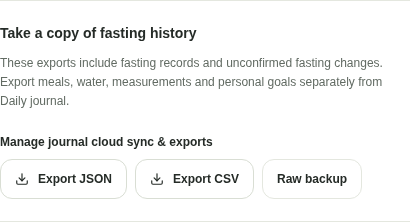
These downloads contain personal records and are not encrypted files. A successful download is not confirmation that pending changes have reached your account.
Choose the format you need
- CSV: a table of sessions
- Includes session ID, start and end in UTC, completed duration in minutes, saved target minutes, and revision. Active sessions have no finish or completed duration. You can open the file in a spreadsheet.
- JSON: fasting history and pending changes
- Includes the fasting document, export time, browser display target, and unconfirmed changes. Keep this format when you need more context than the CSV table contains.
- Raw backup: the current fasting cache
- Keeps the saved cache for the current browser or account scope. This can help preserve information when the app reports unreadable storage or a conflict.
CSV times use UTC, while the app displays dates and times in your device’s local time zone. A session can therefore appear under a different date when you compare the CSV with the calendar.
Extended display targets over 24 hours are separate browser preferences. They appear in the JSON export’s browser display target; the CSV shows the target stored in each fasting record.
Export meals, water, and journal records separately
- Open Daily journal in the relevant guest or account scope.
- Unlock the journal if the records are in protected storage.
- Go to Your wellness records and confirm that you want an unencrypted download and will store it securely.
- Select Export JSON or Export CSV.
Journal JSON includes recorded entries and personal references. Journal CSV includes entries. Neither includes fasting history. Unsubmitted values still in a form are not recorded entries; save or copy those values before leaving the page.
Restore a reviewed JSON backup
For fasting history, open Settings & data and choose Restore a fasting backup. Select a JSON export or raw backup with no unconfirmed operations. Check the destination, session dates, new records, and skipped duplicates before confirming. Account restores require account saving to be enabled.
Journal JSON has a separate restore control in Your wellness records. Review additions, duplicates, and any conflicting entries or personal references before confirming. Unlock saved records first, and resolve pending account operations before importing.
Restoring adds reviewed records through the normal saving process. It does not silently replace different records, resurrect deleted fasting sessions, replay pending operations from a file, or enable saving and marketing choices from a backup. If history changes after the preview, review it again. Keep the original file until the destination confirms the result.
CSV is for reading in a spreadsheet and is not a restore format. Encrypted journal sync-recovery files are different from plain journal exports. Files with conflicts need review; the app does not guess which version you intended.
What an export does not do
A download alone does not remove records, enable cloud saving, combine guest and account histories, or transfer records into a different device. Restore is a separate, explicit choice. Keep the original browser copy or confirmed account copy as well.
If no file downloads
Check your browser’s downloads list and site download permissions. For journal exports, check that the correct journal is unlocked and the download acknowledgment is selected. If the browser still cannot save the file, keep the page open and contact support@kam-ai.com with a description of the problem. Do not include your records or passphrase in the message.