FASTING FREE / PRACTICAL GUIDES
How to Use the Fasting Timer
Start and end a session, choose an optional timer target, and correct a recorded time in Fasting Free. No account is required to begin.
Start and finish a session
- Open the free fasting timer. You can continue without signing in.
- Leave the timer on Open, or choose an optional display target. A target changes the display; it does not prescribe a duration.
- Select Start fasting timer. The app records the start time.
- Select End session whenever you choose. The app records the finish time and adds the completed session to your history.
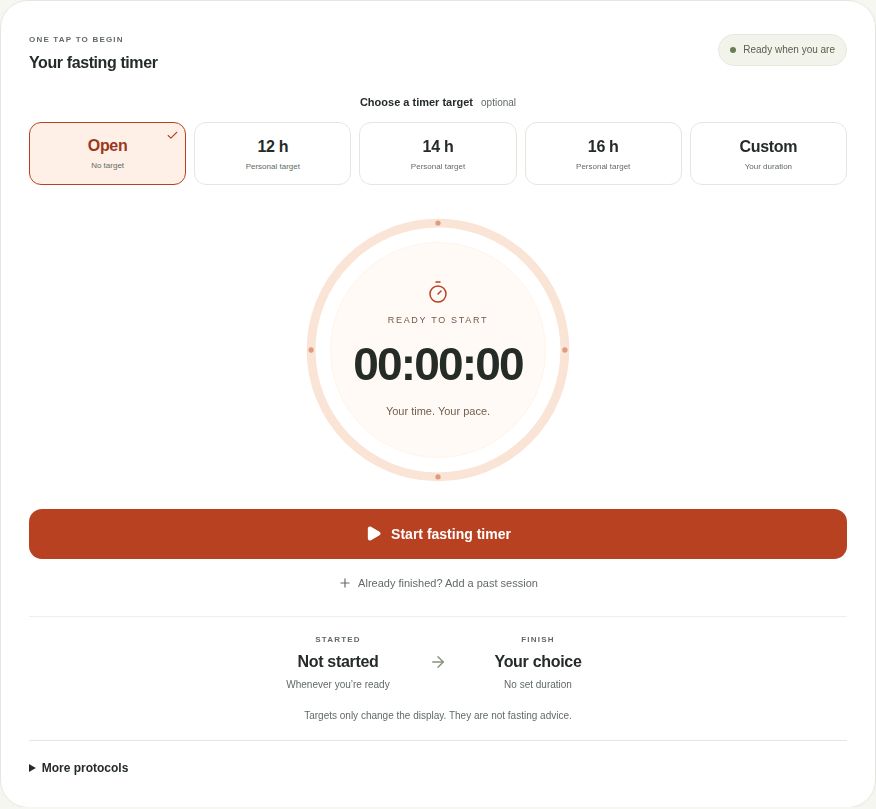
The timer does not end a session automatically when it reaches a target. You stay in control of the finish time.
Started earlier, or ended by mistake?
Choose Started earlier before starting a timer to enter the actual start time. After ending a session, Correct finish opens that recorded finish time for review. Undo end reopens that same session only while it is still the latest unchanged session and there is no other active timer.
Your elapsed or remaining view and custom-target draft stay in place when you visit another tab. A running-timer indicator lets you return to the timer from the journal, history, or other working views.
What happens when you close the page?
When browser saving is working, the start time remains in that browser. When you return, the timer calculates elapsed time from that saved timestamp. It does not need a background countdown to keep running.
Check the status shown above the timer. If browser storage is unavailable or full, the app warns that the latest changes are in this tab only. Keep the page open and export a copy before leaving. Clearing site data or using private browsing can remove local history.
Add a session you already completed
Select Add a past session, enter the start and finish in your device’s local time zone, and choose Save session. The finish must be after the start and no later than now. Sessions cannot overlap.
Correct a time in your history
Open History and use the edit control beside a session. Change the times and save. The calendar uses each session’s start date in your device’s time zone. History filters change what you see; they do not delete saved sessions.
Editing preserves the exact original timestamp when a field is unchanged. If a local time repeats when clocks move back, the editor asks which occurrence you mean. Times skipped when clocks move forward are rejected instead of silently moved to another time.
Preview a finish time
Use the time calculator to add a duration to a local start date. It shows overnight dates and clock changes. You can carry only the duration to the timer, confirm the target, and press Start yourself. The calculator never starts a session or saves your chosen date.
Targets, reminders, and schedules
Targets are optional display settings. Changing a running timer’s target does not change its start time. A weekly schedule also does not start the timer by itself; you choose when to start.
Optional browser reminders need notification permission and an open page. A sleeping device can delay them, and closed-page push notifications are not connected. Do not rely on a reminder to end a session.
Your pace comes first
The app records time. It does not measure a metabolic stage, estimate weight changes, or tell you how long to fast. You can end a session at any point. Read the safety note for the app’s health-related limits.